How to send large files to more than one person at once
A wedding gallery needs to reach the couple, both sets of parents, and the planner. A brand video needs to land with the producer, the client, and legal, all before end of day. The usual ways people handle a list like that choke on attachment limits, recompress the files, or make you set up access one person at a time. Here's how to send one link that works for everyone on the list, without any of that.
Why the usual ways to loop in a group break down
- A BCC or CC list. One wrong or outdated address on a long list fails silently, and the person left off never knows to ask where their copy went. Every provider on the list also has to accept whatever you attach, so your files are stuck under the smallest limit on the list, not the biggest, as covered in the email attachment size limits for every major provider.
- A group chat. iMessage, group SMS, and WhatsApp all resize and recompress whatever passes through them, and a bigger group does not change that since these apps are built for messages, not delivery. A video shot for a client review can arrive too degraded to actually review, a problem already unpacked in sending large video files from an iPhone.
- A shared Drive or Dropbox folder. Every person on the list either needs their own invite or ends up inside a folder wide enough to see every other project sitting next to theirs, the exact trap covered in why Google Drive isn't built for client files.
- Most transfer tools' email option. Even services built for sending large files usually take one recipient address at a time, so a group of ten still means sending the same file ten separate times.
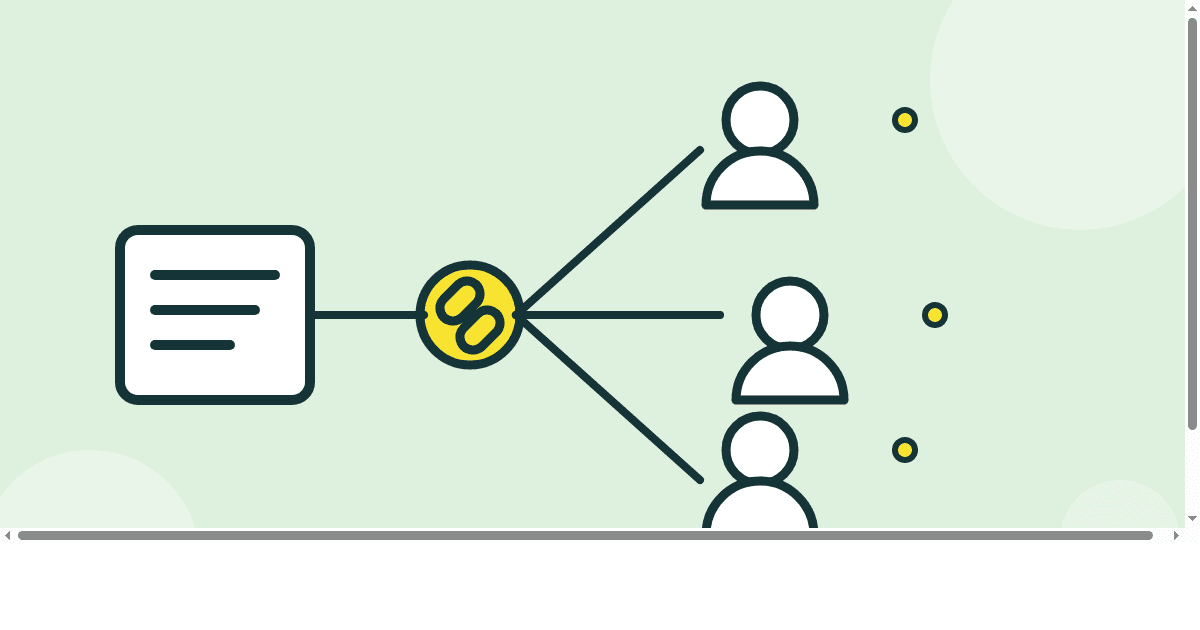
One link works no matter how many people are on the list
On the upload screen, the "Get a link" tab hands you one download URL as soon as your upload finishes, and you can give that same link to as many people as the job needs, since anyone holding it can open it. No separate invite, no account for them to make, and nothing to redo for the second, fifth, or twentieth person on the list, exactly as described in the guide to getting a link or sending via email.
The "Send via email" tab still fills in one receiver address at a time, and without an account or on the Free plan it is capped at two sends a day besides. For anything bigger than a couple of people, generating the link once and handing it out however already reaches your group, a group text, a shared thread, a card at the front desk, is the faster path anyway.
What a group actually needs from that link
- A preview before anyone downloads. Parents, legal, a client you just met, people you do not manage day to day should not have to guess what is inside before they click. Images, video, and PSDs all show a thumbnail on the download page first.
- The same folder structure for everyone. Every person who opens the link sees the identical layout, so when someone says "check the Finals folder" the whole group is looking at the same thing.
- An expiry that matches the job. A link handed to a bigger group is more likely to get forwarded past whoever you first sent it to, so it should not sit open indefinitely by default.
- A password, when the group is not fully under your control. The more people who end up holding a link, the more worth locking it down, covered in password protecting a transfer.
Side by side: what actually happens with each method
| Method | Holds up for a group? | What actually happens |
|---|---|---|
| BCC or CC email list | No | Stuck under the smallest attachment cap on the list, one bad address fails silently |
| Group chat (iMessage, SMS, WhatsApp) | No | Video and photos get recompressed, and everyone needs the same app |
| Shared Drive or Dropbox folder | Only with setup | Each person needs their own invite before they can see anything |
| One ZappFiles link | Yes | Same link for everyone, no account needed on either end |
If you still want everyone notified directly
Some deliveries need more than a link dropped in a group thread, each person expects their own notification. ZappFiles can still send that, one address at a time through the email tab, or you can keep the single link and paste it into whatever already reaches your list. Either way, the download page each person lands on is identical.
Once the link is out, a download count on your transfer tells you it is getting used, without emailing the whole group to ask. That count is exactly that, a count, not a list of names, as covered in how to know if your files were downloaded. For a group of ten, expect ten downloads to show up over time, not ten names.
Before you send to a group
- Count how many people actually need the raw files, not just a status update, before picking a delivery method.
- Check whether the files would even survive an email attachment before you try BCC on a long list.
- Decide if the link needs a password, especially if it is likely to get forwarded past your original list.
- Set an expiry that matches how long the group actually has to grab their copy, not whatever the default happens to be.
- If you need proof someone downloaded, remember it is a count, not a name, unless they happen to be signed in.
Stop sending the same file ten times
One link, sent once, opens the same way for two people or two hundred. No account needed on either end.